






Learn how to create 3d food text effect. This Adobe Photoshop tutorial teaches how to apply food textures and light reflections to the 3d letters. You may get large (2.6 x 2.3 in, 300px/in) editable .psd* file of "Bacon and Fried Eggs tutorial" Photoshop tutorial by making a payment.
Also you may get previous file + large (11.6 x 11 in, 300px/in) .psd* file of "Food Text effect Alphabet" which includes all English letters and 1-9 numbers in separate layers. Each letter contains separate letter layer + shadow layer. You will be able to remove or change shadow effect.
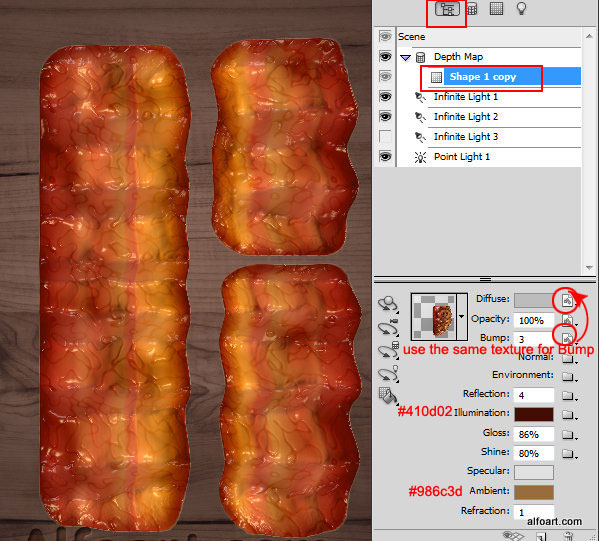
- Return to the main document. Open 3D material settings panel.
- Apply following settings for the bacon material.
- For the "Bump" upload the same texture as for "Diffuse", we saved it previously as a "Bump".
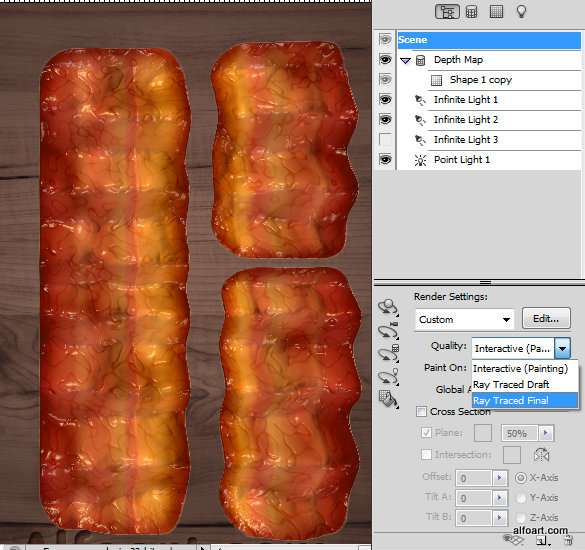
- Choose "Ray Traced Final" after applying all 3D adjustments.
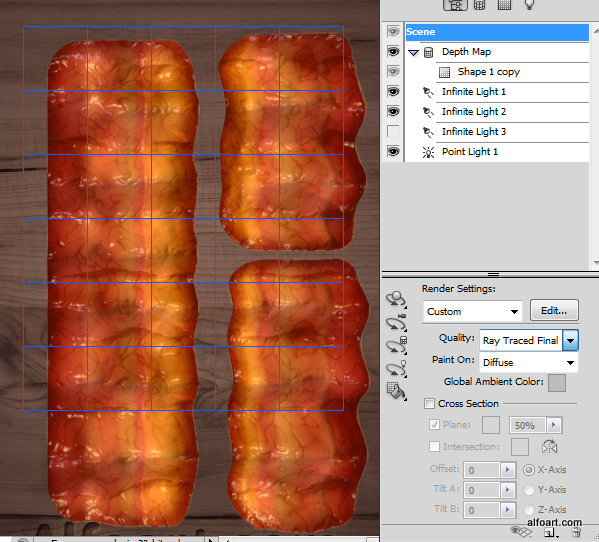
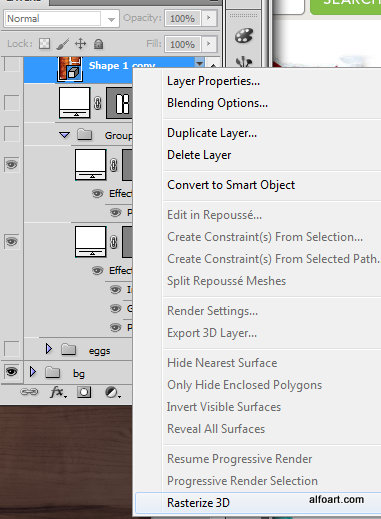
- Rasterize 3D layer after all.
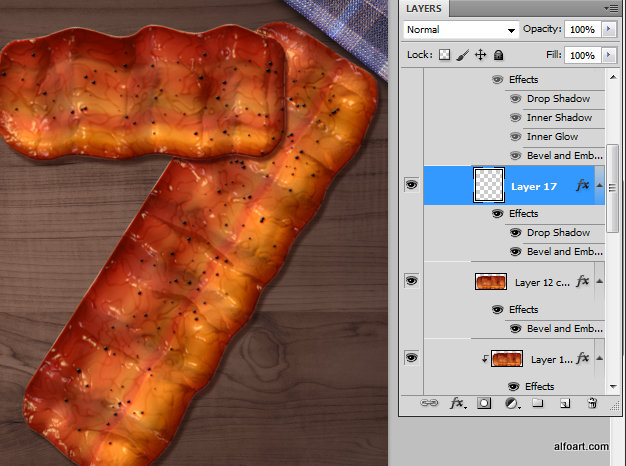
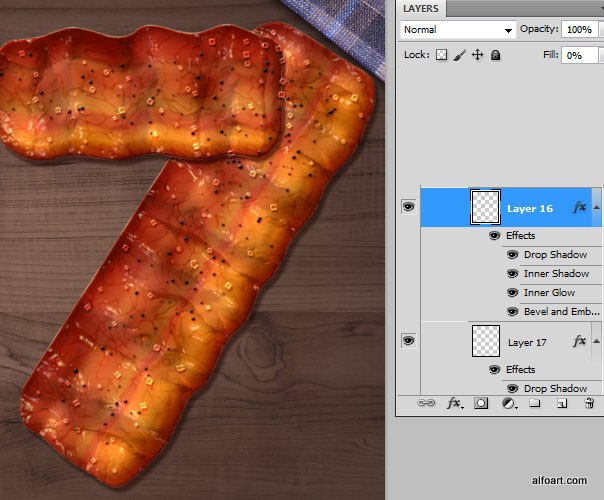
- Then you may select and cut the parts of bacon rasterized layer. Apply "Bevel and Embossed" effect to the parts to highlight the shine side of the strips. Rotate them as needed.
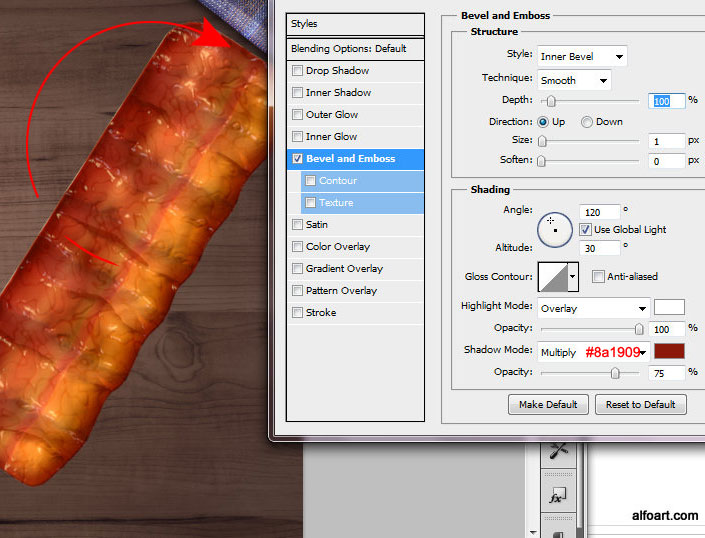
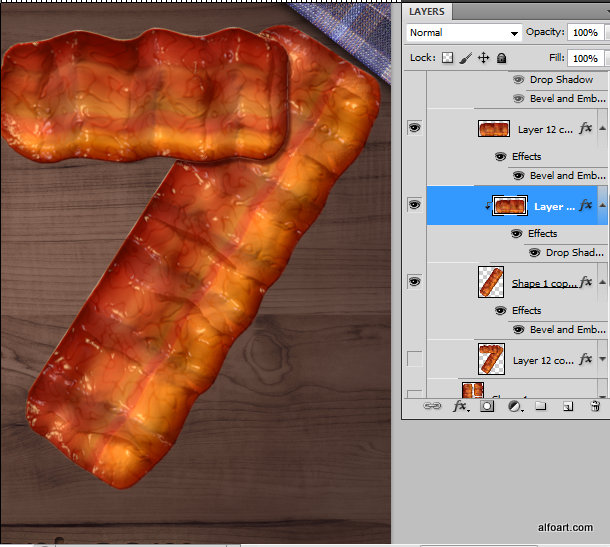
- In order to create drop shadow effect from the top bacon strip to the bottom, duplicate the top one.
- Convert bottom duplicate to the Clipping Mask for the layer below (right click layer and choose "Create Clipping Mask").
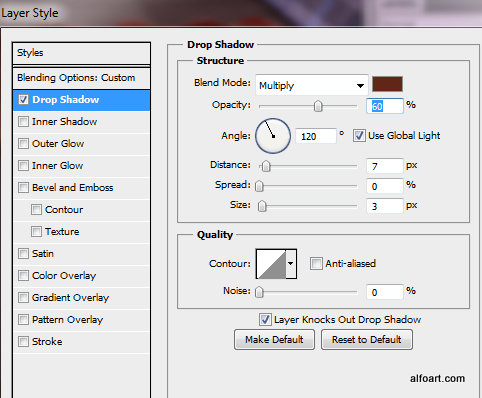
- Apply drop shadow effect to the Clipping Mask.
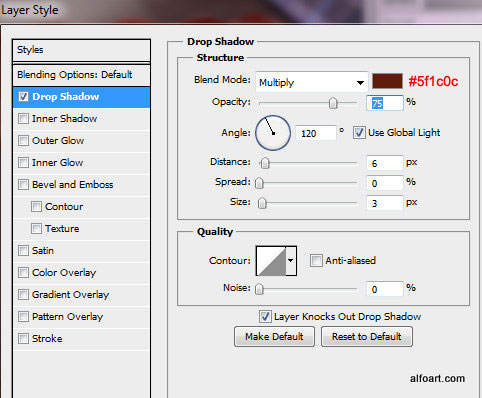
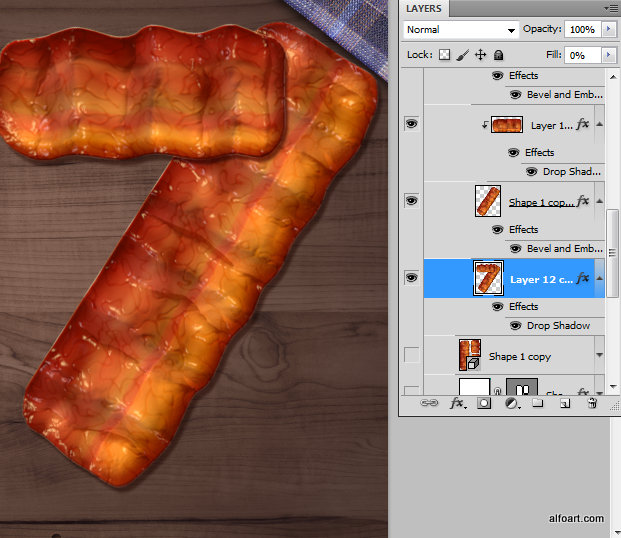
- To apply shadow effect for the all shape, duplicated all bacon layers, merge the bottom duplicates and apply "Drop Shadow" layer style effect to the merged layer.
- Create pepper effect wit the scattered brush using the the same way as for eggs.
- Apply layer style effects for the pepper layer:
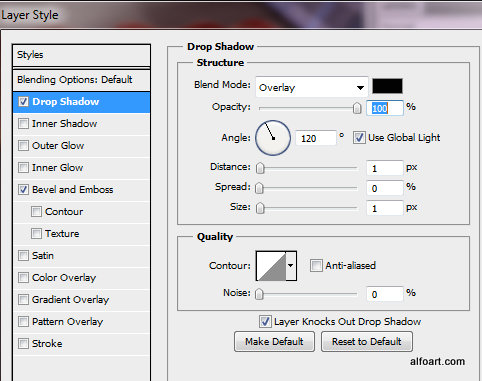
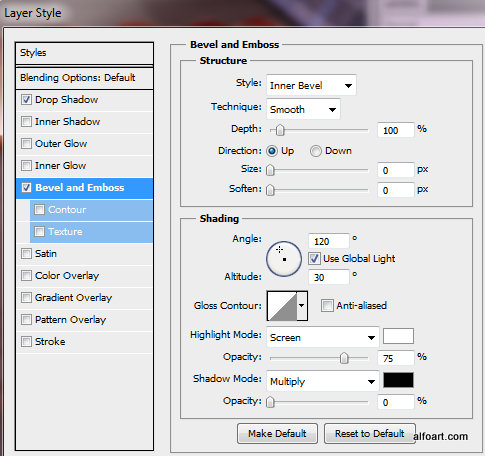
- Create salt effect using the same instructions as for the eggs.
- Here are eggs and bacon after applying all settings:
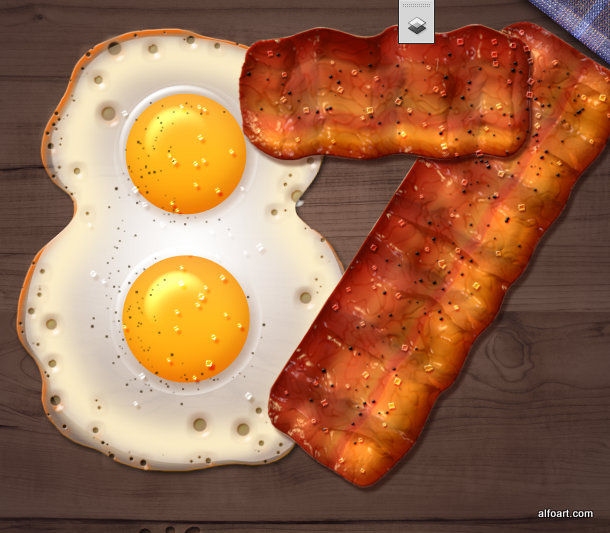
And here is the result! To be continued...
