





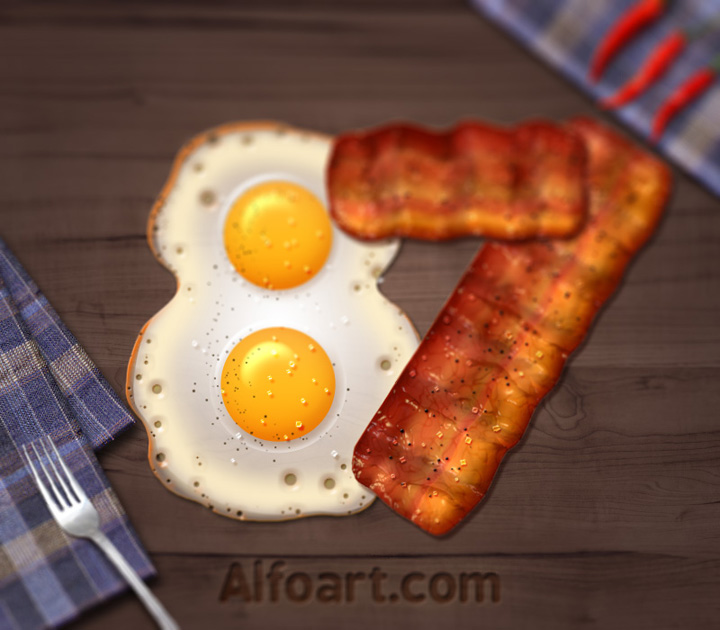
 Learn how to create 3d food text effect. This Adobe Photoshop tutorial teaches how to apply food textures and light reflections to the 3d letters. You may get large (2.6 x 2.3 in, 300px/in) editable .psd* file of "Bacon and Fried Eggs tutorial" Photoshop tutorial by making a payment.
 Also you may get previous file + large (11.6 x 11 in, 300px/in) .psd* file of "Food Text effect Alphabet" which includes all English letters and 1-9 numbers in separate layers. Each letter contains separate letter layer + shadow layer. You will be able to remove or change shadow effect.
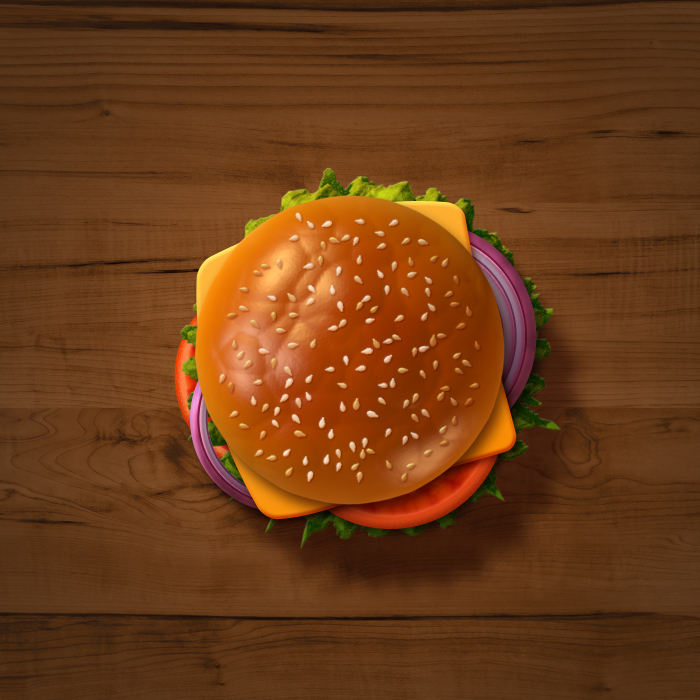 Also you may get any 3 layered fully editable letters (2.6 x 2.3 in, 300px/in) .psd* files of "3 layered Food Text Letters" Please, let me know which letters you need in "Add special instructions to seller" line of PayPal .
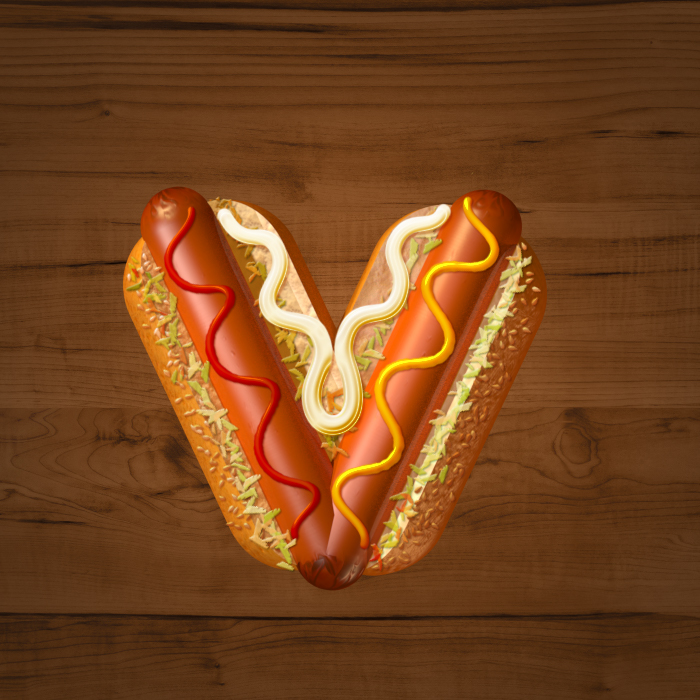
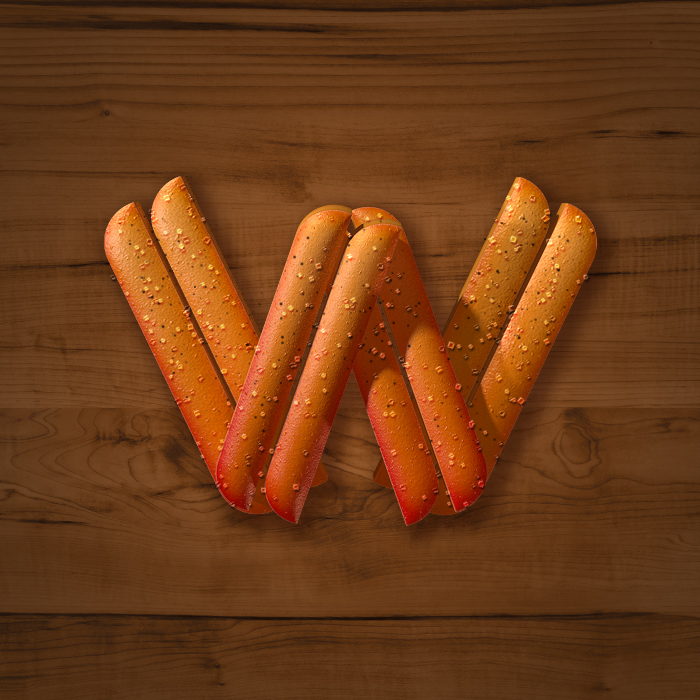
Whole "Food text effect" alphabet. Click to enlarge the image:
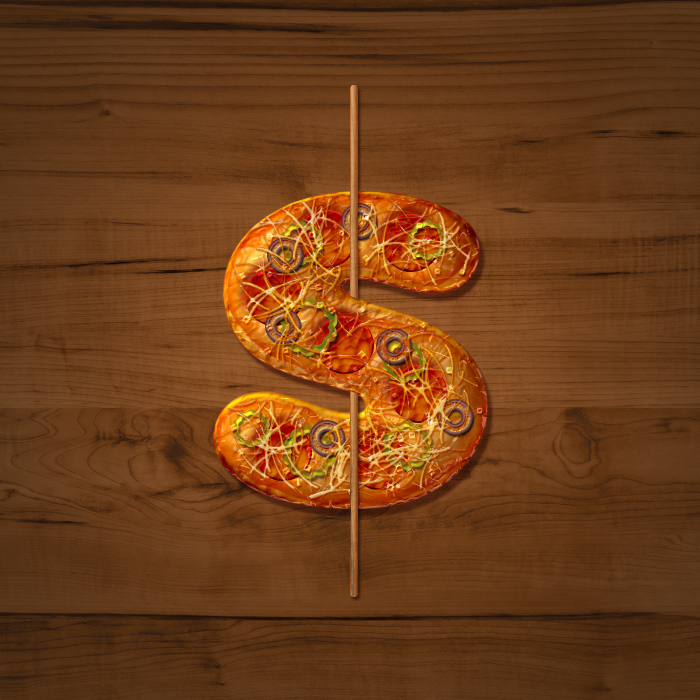
- Bacon 3D shape.
- Bacon gradient.
- Bacon Patterns.
- 3D lights for bacon.
- Egg Brushes.
The images used for background:
Help Files:
- Create a new Photoshop document 800 x 700px, and resolution - 300px/inch. The layer style effects for the letters depend on the shapes size and resolution.
- Create the eggs silhouette shape in a new layer with the large round brush. The size of the shape below is around 325 x 430 px.
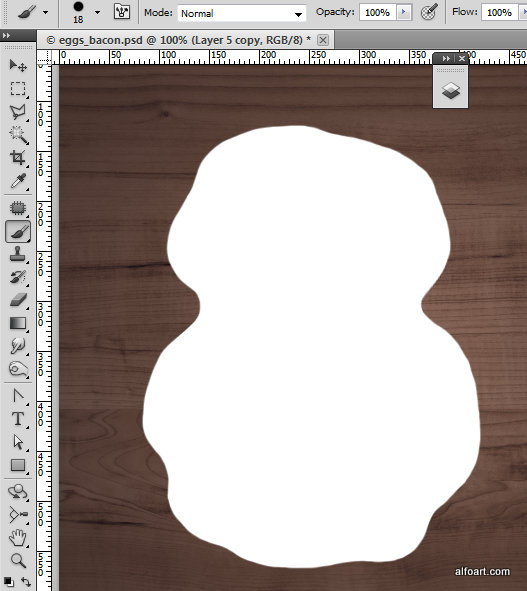
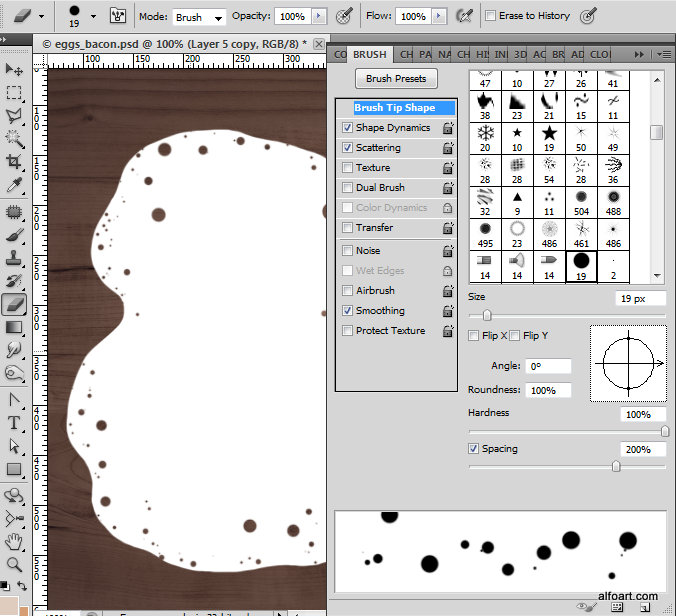
- Choose Eraser Tool (round shape with Dynamic/Scattering effects). You may download eggs brushes here.
- Create the bubbles edges similar to the example below:
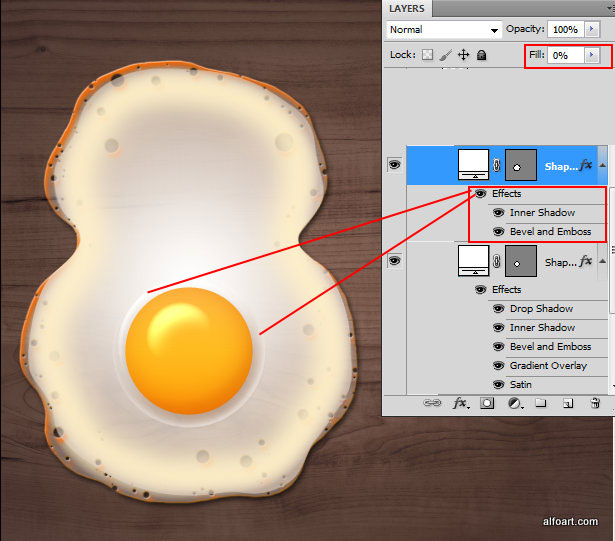
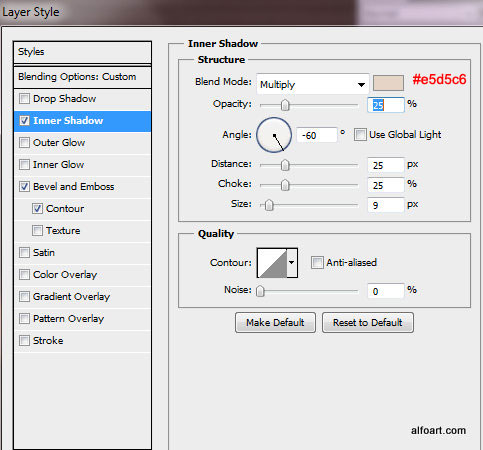
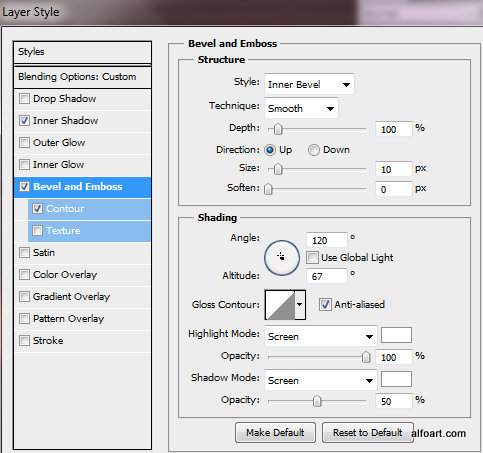
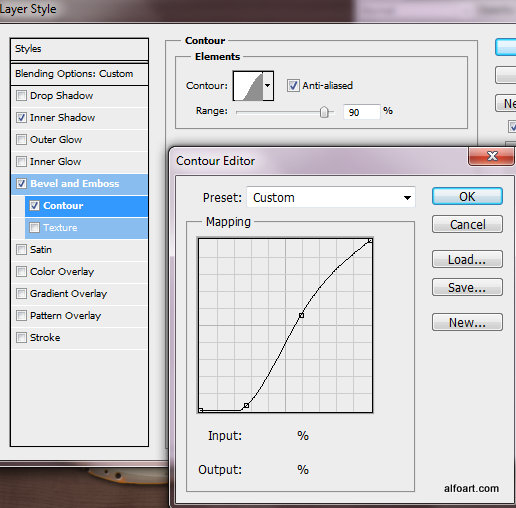
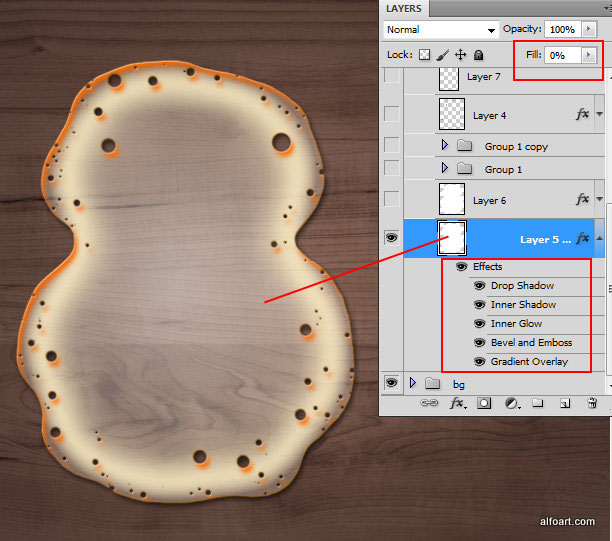
- Then adjust Fill = 0% for this layer and apply layer style effects:
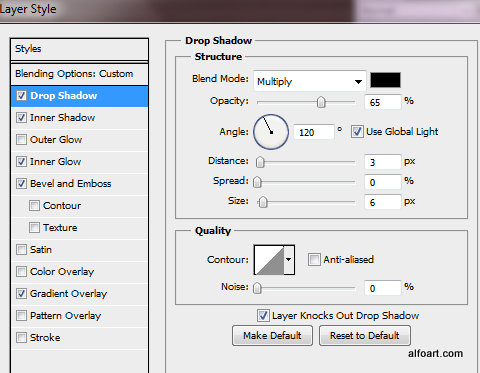
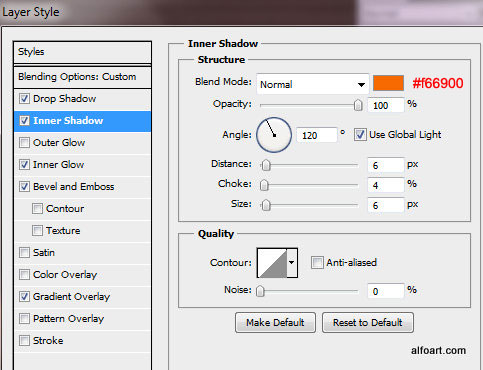
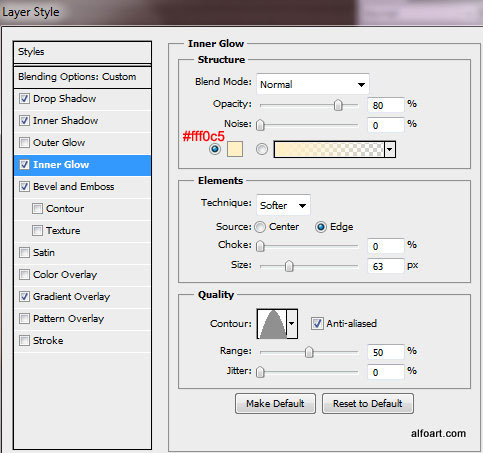
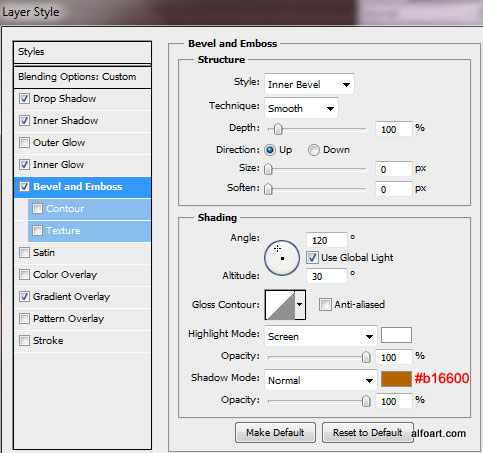
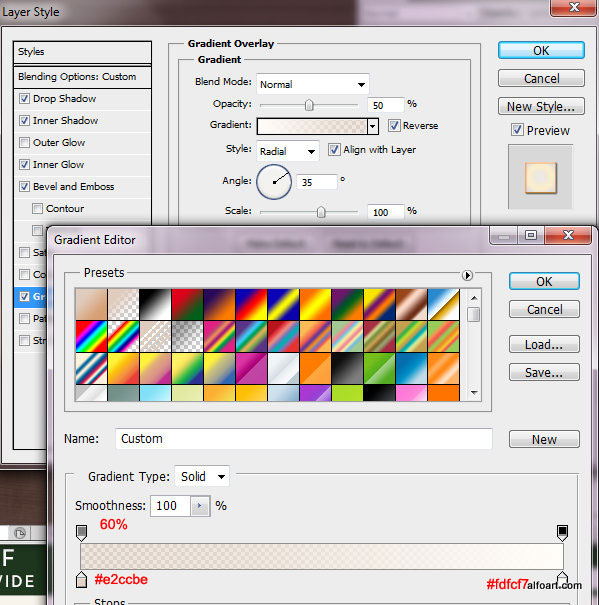
- Create a new layer and draw very similar shape to the previous one, but little bit smaller.
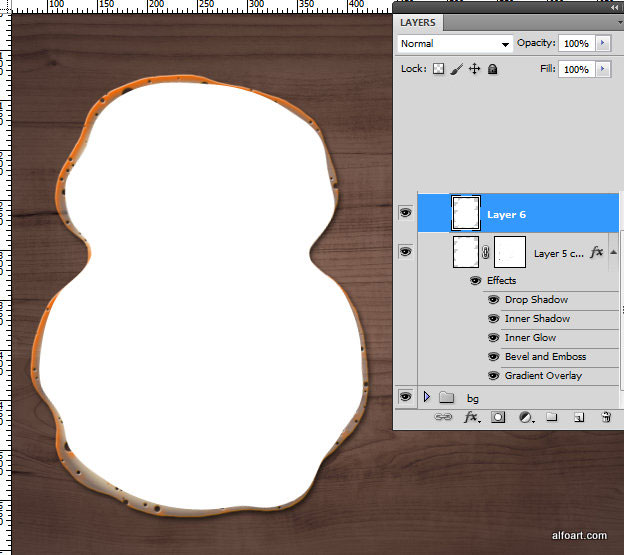
- Apply Fill = 0% and layer style effects.
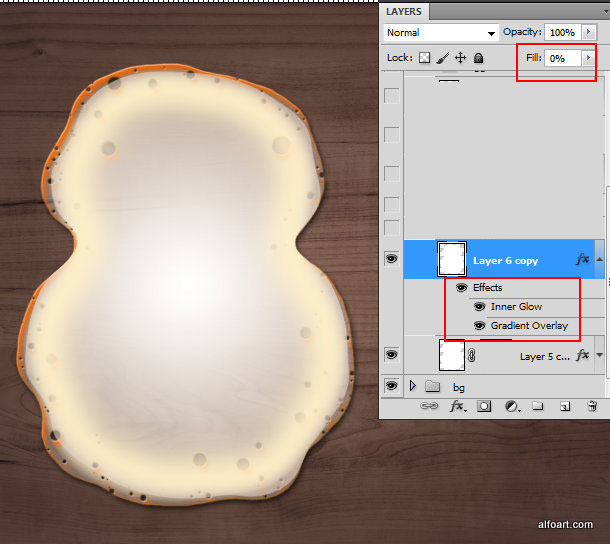
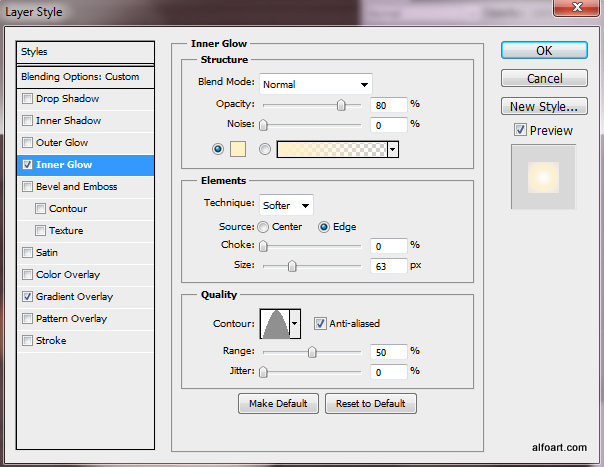
- The same gradient as for the previous layer:
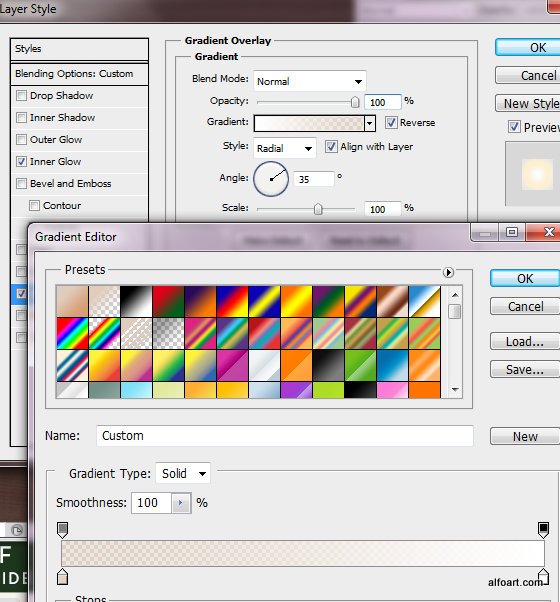
- Create a yolk shape in a new layer, use Ellipse Tool.
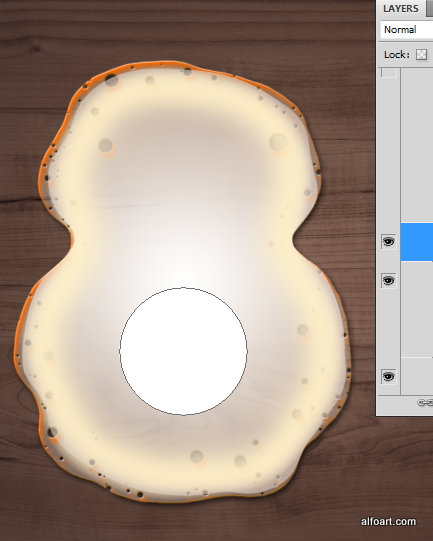
- In order to get very similar layer style effects, the size of yolk has to be ~ 130 x 130px.
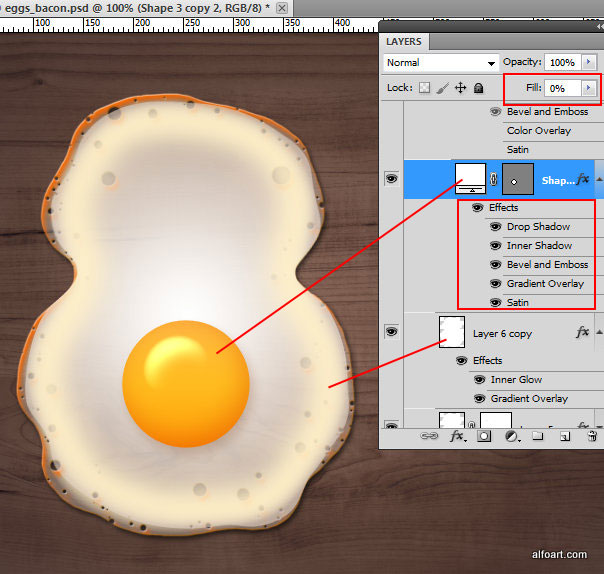
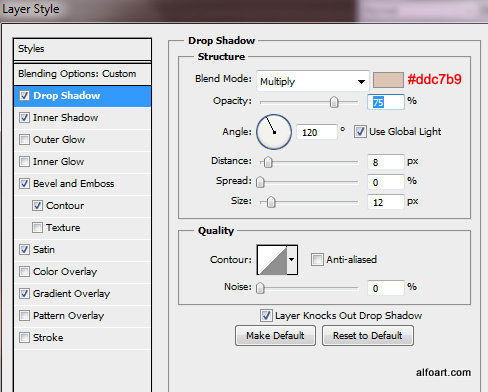
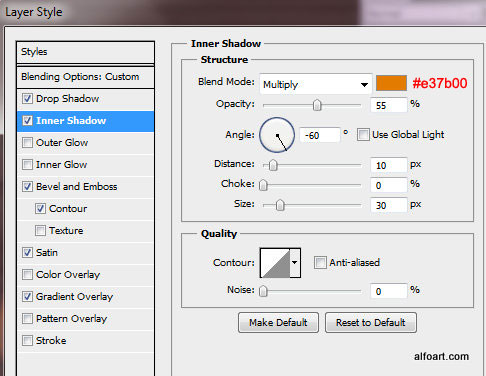
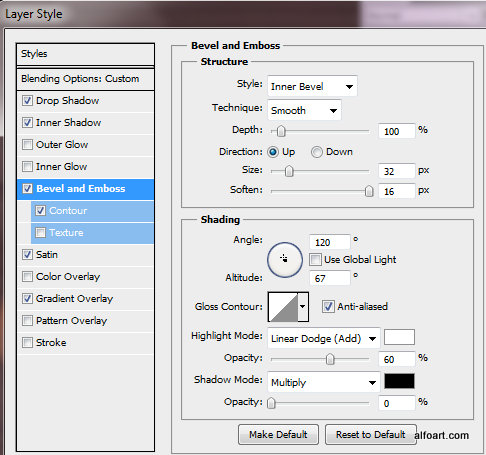
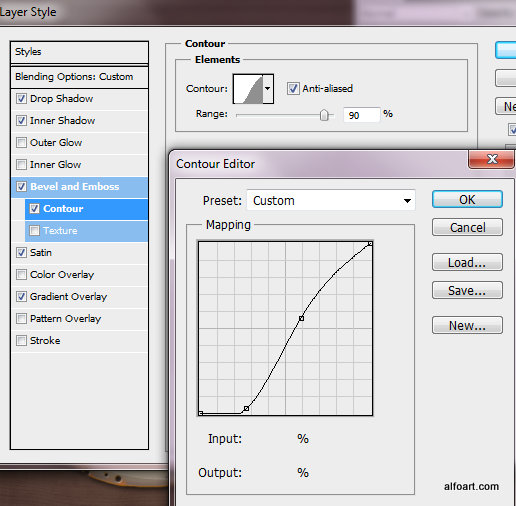
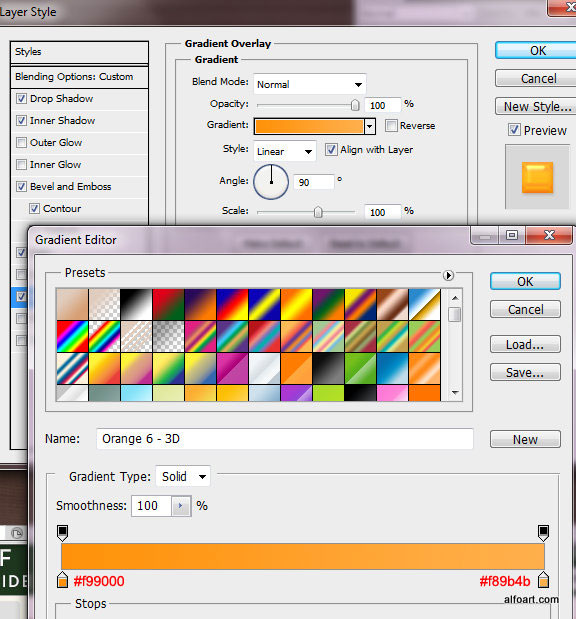
- Create a larger circle shape in a new layer above the previous one:
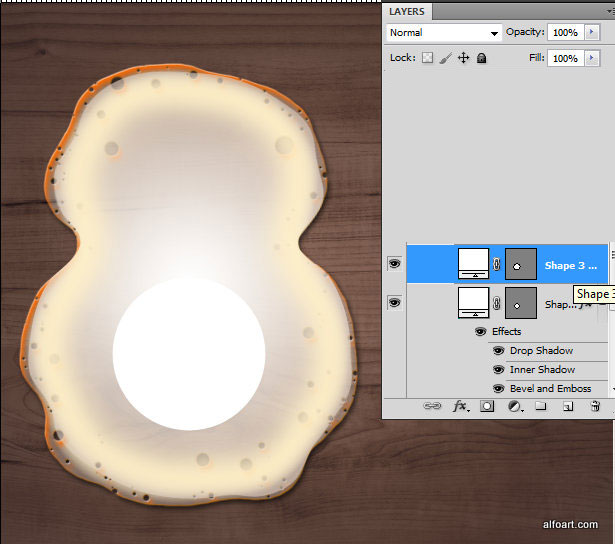
- As previously, apply Fill = 0%, then add couple of layer style effects: